Performance Tips & Tricks - Animation
Optimizing Skeletal Mesh Animation and Animation Blueprint in Unreal Engine can be challenging. This guide aims to simplify the process, helping you achieve high-fidelity animation within a performance budget that works for your project.
Performance issues with animation tend to break down into two different areas: the game thread cost of ticking Skeletal Meshes and the Worker Thread cost of updating anim blueprints and, specifically, executing anim graphs. Strategies for optimizing these are discussed below.
언리얼 엔진에서 Skeletal Mesh Animation과 Animation Blueprint를 최적화하는 것은 어려울 수 있습니다. 이번 가이드는 프로세스를 단순화하고, 여러분이 프로젝트에 적합한 성능 예산내에서 고퀄리티 애니메이션을 달성할 수 있도록 할 것 입니다.
애니메이션에서 성능 문제는 일반적으로 2가지 영역으로 나뉩니다: Skeletal Mesh를 Tick하는 Game Thread 비용과 Anim Blueprint를 업데이트하고 특히, Anim Graph를 실행하는 Worker Thread 비용입니다. 이러한 최적화 전략은 아래에서 설명합니다.
Managing Skeletal Mesh Tick
Skeletal Mesh is central to Unreal’s character animation system, but it's not a lightweight solution. While the execution of Anim Blueprint is usually threaded, each ticked mesh has an associated Game Thread cost for logic that runs before and after the parallel animation tasks (eg. LOD calculations, buffer allocations, notify logic, etc). So it’s important to consider how many meshes are ticking on a given frame and how you can manage that workload.
Skeletal Mesh는 언리얼 캐릭터 애니메이션 시스템의 핵심이지만, 가벼운 솔루션은 아닙니다. Anim Blueprint는 일반적으로 멀티스레드 방식으로 실행되지만, Tick된 각각의 메시에는 병렬 애니메이션 작업 전후에 실행되는 로직(예: LOD 계산, 버퍼 할당, Notify 로직 등)에 대한 Game Thread 비용이 발생합니다. 따라서 특정 프레임에서 Tick되는 메시의 수와 이러한 작업 부하를 어떻게 관리할 수 있는지 고려하는 것이 중요합니다.
Reduce Ticking
The obvious approach to animating meshes in Unreal is to make them all Skeletal Meshes with Anim Blueprints, and, by default, have them tick all the time. However, you'll soon run into performance issues with this approach. So it helps to think about whether the object that you're animating needs to be Skeletal Mesh, and if it does, does that mesh need to be ticked every frame?
For example, offscreen meshes, or meshes that are far from the camera, can run animation updates at a reduced rate. Or have their tick disabled. Multi-mesh part character setups can sometimes be merged. And for environmental objects, such as doors, Skeletal Mesh often tends not to be a good solution due to the overhead. By controlling tick behaviour, you can often improve performance without sacrificing fidelity.
The following are some tools that can help reduce the number of meshes that are ticking each frame:
언리얼에서 Mesh를 애니메이션 시키는 가장 확실한 방법은 Anim Blueprint를 사용하여 모든 메시를 Skeletal Mesh로 만들고, 기본적으로 항상 Tick하도록 설정하는 것입니다. 하지만 이러한 접근 방식을 사용하면 곧 성능 문제가 발생할겁니다. 따라서 애니메이션을 구현하는 오브젝트가 Skeletal Mesh여야 하는지, 그리고 만약 그렇다면 해당 메시를 매 프레임마다 Tick해야 하는지 생각해 보는 것이 좋습니다. 예를 들어, 화면에 보이지않거나 카메라에서 멀리 떨어진 Mesh는 애니메이션 업데이트 횟수를 낮출 수 있습니다. 또는 Tick을 비활성화할 수도 있습니다. 여러 개의 Mesh 부위로 구성된 캐릭터 설정은 경우에 따라 병합할 수 있습니다. 문과 같은 환경 오브젝트의 경우, Skeletal Mesh는 오버헤드 때문에 좋은 해결책이 아닌 경우가 많습니다. Tick 동작을 제어하면 퀄리티를 희생하지 않고도 성능을 향상시킬 수 있는 경우가 많습니다. 다음은 매 프레임마다 Tick되는 메시 수를 줄이는 데 도움이 되는 몇 가지 도구를 알려드리겠습니다.
Animation Budget Allocator
The Animation Budget Allocator automatically manages animation update rates based on a predefined animation budget, using the same update-skipping functionality as URO(see below). Unlike URO however, the allocator can also disable tick entirely on a mesh. Configurable via an .ini file, it controls registered Skeletal Mesh Component Budgeted components, supports interpolation for non-updated meshes, and allows custom behaviour in ‘reduced work’ mode (for example, disabling tick on a weapon owned by the same character as the throttled mesh). This system is crucial in Fortnite for animating many characters on screen efficiently.
Animation Budget Allocator는 URO와 동일한 업데이트 스킵 기능을 사용하여 사전 정의된 애니메이션 예산을 기반으로 애니메이션 업데이트 레이트를 자동으로 관리합니다(아래 참조). 하지만 URO와 달리, Animation Budget Allocator는 메시의 Tick을 완전히 비활성화할 수도 있습니다. .ini 파일을 통해 설정할 수 있는데요, 등록된 Skeletal Mesh Budgeted Components를 컨트롤하고, 업데이트되지 않은 메시에 대한 Interpolation을 지원하며, 'reduced work' 모드에서 커스텀 동작(ex: 쓰로틀링된 메시와 동일한 캐릭터가 소유한 무기의 Tick 비활성화)을 허용합니다. 이 시스템은 포트나이트에서 화면에 여러 캐릭터를 효율적으로 애니메이션시키는 데 매우 중요합니다.
Merging Meshes
Merging Skeletal Meshes reduces the number of ticked components and draw calls per frame. This can be done in several ways:
Merge in DCC - if you don’t need to switch mesh parts dynamically, you are better off merging them in a DCC tool.
Merge in DCC - 메시 부분을 동적으로 전환할 필요가 없다면 DCC 툴에서 병합하는 것이 더 좋습니다.
Skeletal Mesh Merge API - Use the FSkeletalMeshMerge API for runtime merging in packaged projects. Note that this functionality runs on the game thread, so it can cause hitches, but it will reduce perf costs after the merge. Morph targets are also not currently supported.
Skeletal Mesh Merge API - 패키지된 프로젝트에서 런타임 병합을 위해 FSkeletalMeshMerge API를 사용합니다. 이 기능은 게임 스레드에서 실행되므로 Hitch가 발생할 수 있지만, 병합 후 성능 저하를 줄여줍니다. Morph Targets도 현재 지원되지 않습니다.
Mutable - Merge skeletal mesh components either in the editor, to create new assets, or at runtime, asynchronously, to generate meshes dynamically.
Mutable - 에디터에서 Skeletal Mesh Components를 병합하여 새로운 에셋을 생성하거나, 런타임에 비동기적으로 병합하여 동적으로 메시를 생성합니다.
Vertex Animation
Vertex Animation on Static Mesh is an alternative to full Skeletal Mesh animation. This approach is ideal for low-detail characters or some environmental objects. City Sample uses vertex animation for crowds which enables us to have large-scale character animation. The AnimToTexture plugin provides tools to get started.
Static Mesh의 Vertex Animation은 전체 Skeletal Mesh Animation에 대한 대안입니다. 이 방식은 low-detial 캐릭터 또는 일부 환경 오브젝트에 적합합니다. City Sample은 군중에 Vertex Animation을 사용하여 대규모 캐릭터 애니메이션을 구현할 수 있습니다. AnimToTexture 플러그인은 이러한 작업을 위한 툴을 제공합니다.
One challenge with vertex animation is blending back into regular animated Skeletal Mesh. Although this isn’t visible when running City Sample, there is some code in the project that shows how this can be done in UMassProcessor_Animation::UpdateSkeletalAnimation.
Vertex Animation의 한 가지 과제는 애니메이션된 일반 Skeletal Mesh로 다시 블렌딩하는 것입니다. City Sample을 실행할 때는 이 부분이 보이지 않지만, 프로젝트의 UMassProcessor_Animation::UpdateSkeletalAnimation에서 이 작업을 수행하는 방법을 보여주는 코드가 있습니다.
Mesh LODs
Unreal offers tools for generating LODs for Skeletal Mesh that automate reducing polygon and bone counts. The following screenshots show the difference between LODs generated within the same asset.
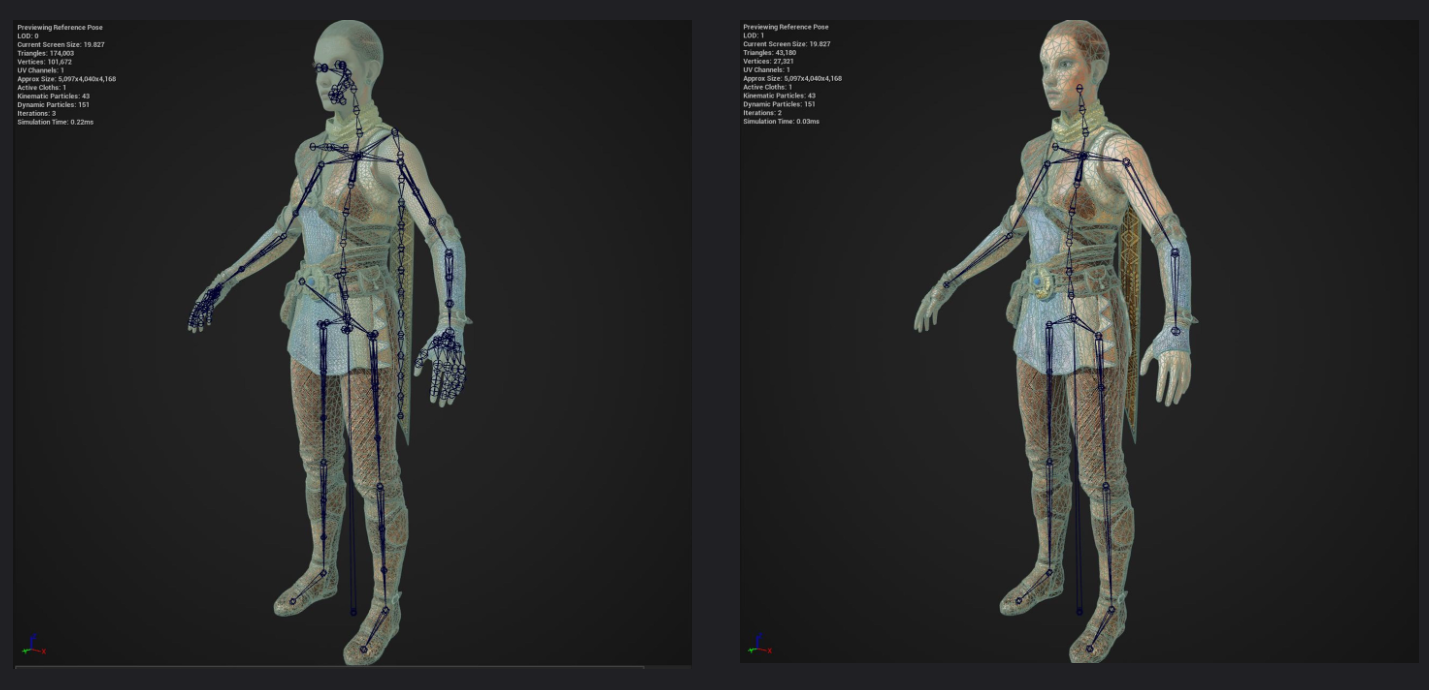
The mesh on the right has 25% of the polys of the left, with cosmetic, facial, finger, and scarf bones also removed. Removing bones reduces the bone buffer size for animation updates and for rendering. Additional options include removing Morph Targets and reducing skin influences. The documentation covers all available tools, including bone reduction and platform-specific LODs.
오른쪽 메시는 왼쪽 메시의 폴리곤의 25%를 차지하며, cosmetic, facial, finger, scarf bones도 제거되었습니다. bone을 제거하면 애니메이션 업데이트 및 렌더링을 위한 bone buffer size가 줄어듭니다. 추가 옵션으로는 Morph Targets 제거 및 skin influences 감소가 있습니다. 이 문서에는 bone reduction 및 platform-specific LODs를 포함한 사용 가능한 모든 도구가 포함되어 있습니다.
Compressed animations are unaffected by reduced bone counts in meshes.
Compressed animation은 메시에서 감소된 본 개수에 영향을 받지 않습니다.
Managing the Animation Blueprint Update
Beyond ticking Skeletal Mesh Components, we also have the animation update for Anim Blueprints. This can broken down further into two phases: update, which determines the set of active nodes in the anim graph for the current frame, and evaluation, which executes the graph to generate a pose. Complex graphs can be expensive so ideally, the animation update always occurs on a worker thread. And like with the ticking of meshes, often certain anim blueprints can have their animation update skipped.
Skeletal Mesh Component를 Tick하는 것 외에도, Anim Blueprint에 대한 Animation Update도 있습니다. 이는 두 단계로 나눌 수 있습니다. Upate는 현재 프레임의 애님 그래프에서 active node 셋트를 결정하고, Evaluation은 그래프를 실행하여 포즈를 생성하는 단계입니다. 복잡한 그래프는 비용이 많이 들 수 있으므로 이상적으로 Animation Update는 항상 Worker Thread에서 수행됩니다. Mesh를 Tick하는 것과 마찬가지로, 특정 애니메이션 블루프린트의 애니메이션 업데이트가 스킵되는 경우가 많습니다.
Parallel Animation Update
Unreal’s default behaviour is parallel (multithreaded) animation updates, allowing each Anim Blueprint to update and evaluate on a worker thread. There are some factors that can cause the animation update to run on the game thread, so we recommend ensuring this doesn’t happen for your animation blueprints to prevent them from becoming a bottleneck.
Animation updates may run on the game thread if:
- Root Motion From Everything is used when a Character Movement Component is present. This forces the animation update onto the game thread. Instead, you can now use AttributeBasedRootMotionComponent (see the Motion Warping plugin), which applies the last frame’s root motion data to the current frame. We recommend putting the component into velocity mode to avoid jitter due to the frame delay.
- Using a non-thread safe anim node anywhere in your anim graph - all anim nodes shipped by Epic are thread safe.
- Calling a non-thread safe function from within the anim graph. If you do this, you should see a warning when you compile your anim blueprint. Property access-based calls remain safe, as they are automatically run prior to the animation update and cached when required.
- The initial animation update will run on the game thread if the Tick Animation On Skeletal Mesh Init property is set (see below)
Disable Tick Animation On Init
A common issue that projects run into is the high cost of the initial animation update when spawning Skeletal Mesh components. Since there’s no easy way to control when a mesh is spawned during a frame, Unreal forces the initial update to happen directly on the game thread by default. This can result in visible hitches. The Tick Animation On Skeletal Mesh Init project property can be disabled to prevent this initial game thread update:
프로젝트에서 흔히 발생하는 문제 중 하나는 스켈레탈 메시 컴포넌트를 스폰할 때 초기 애니메이션 업데이트 비용이 높다는 것입니다. 프레임 중에 메시가 스폰되는 시점을 쉽게 제어할 수 없기 때문에 언리얼은 기본적으로 초기 업데이트가 게임 스레드에서 직접 발생하도록 강제합니다. 이로 인해 눈에 띄는 Hitch가 발생할 수 있습니다. 이러한 초기 게임 스레드 업데이트를 방지하기 위해 "Tick Animation On Skeletal Mesh Init" 프로젝트 프로퍼티를 비활성화할 수 있습니다.

- The Tick Animation On Skel Mesh Init property can be found in your project settings
The drawback to this approach is that the mesh spawns in ref-pose. In Fortnite, we resolve this by hiding the mesh on the frame it spawns and making it visible on the second frame, ensuring a valid pose is generated through the regular threaded update path.
이 접근 방식의 단점은 메시가 참조 포즈(ref-pose)에서 생성된다는 것입니다. 포트나이트에선 스폰되는 프레임에서 메시를 숨기고 두 번째 프레임에서는 보이게 하여 이 문제를 해결합니다. 이를 통해 regular threaded update path를 통해 유효한 포즈가 생성되도록 보장합니다.
Visibility Based Anim Tick Option:
The Skeletal Mesh Component’s Visibility Based Anim Tick Option property controls the animation update depending on whether a mesh is onscreen or not. The options include:
Skeletal Mesh Component의 Visibility Based Anim Tick Option 프로퍼티는 메시가 화면에 보이는지에 따라 Animation Update를 컨트롤합니다. 옵션은 다음과 같습니다.
- Always Tick Pose And Refresh Bones
- the anim graph is always updated and evaluated, even when the mesh is offscreen.
- 메시가 화면에 보이지않더라도 애님 그래프가 항상 업데이트되고 평가됩니다.
- Always Tick Pose
- the anim graph is always updated but only evaluated to generate a pose when the mesh is onscreen.
- 애님 그래프는 항상 업데이트되지만 메시가 화면에 보일 때만 포즈를 생성하기 위해 평가됩니다.
- Only Tick Pose When Rendered
- the anim graph is updated and evaluated only when the mesh is onscreen.
- 메시가 화면에 보일 때만 애님 그래프가 업데이트되고 평가됩니다.
- Only Tick Montages And Refresh Bones When Playing Montages
- when the mesh is offscreen, the anim graph will only be updated and evaluated when a montage is active.
- 메시가 화면에 보이지 않을 때, Monatge가 활성화되었을 때만 애님 그래프가 업데이트되고 평가됩니다.
- Only Tick Montages When Not Rendered
- when a mesh is offscreen, the anim graph will only be updated when a montage is active.
- 메시가 화면에 보이지 않을 때, Monatge가 활성화되었을 때만 애님 그래프가 업데이트 됩니다.

In Fortnite, we tend to use Only Tick Montages When Not Rendered as this ensures that gameplay dependent notify data from Montages is always generated. This is particularly useful in server builds where all meshes are always flagged as not visible.
포트나이트에서는 Only Tick Montages When Not Rendered 옵션을 사용하는 경향이 있는데, 이를 통해 몽타주에서 게임플레이 관련 Notify 데이터가 생성되는 것을 보장합니다. 이는 모든 메시가 항상 보이지 않는 서버 빌드에서 특히 유용합니다.
Avoiding the Event Graph
Updating the Event Graph in an Animation Blueprint can be costly since it runs on the game thread, unlike the Anim Graph which runs on a worker thread. This is particularly the case if running a lot of logic in the Event Graph, or if many Event Graphs are active (for example, in a mesh that uses multiple Linked Anim Graphs/Layers). As a result, we recommend that you avoid using the Event Graph if possible and instead look at alternatives.
애니메이션 블루프린트에서 이벤트 그래프를 업데이트하는 것은 게임 스레드에서 실행되므로 비용이 많이 들 수 있습니다. 반면, 애니메이션 그래프는 Worker Thread에서 실행됩니다. 특히 이벤트 그래프에서 많은 로직을 실행하거나 여러 이벤트 그래프가 활성화된 경우(ex: 여러 개의 Linked Anim Grpahs/Layers를 사용하는 메시) 더욱 그렇습니다. 따라서 가능하면 이벤트 그래프 사용을 피하고 다른 대안을 모색하는 것이 좋습니다.
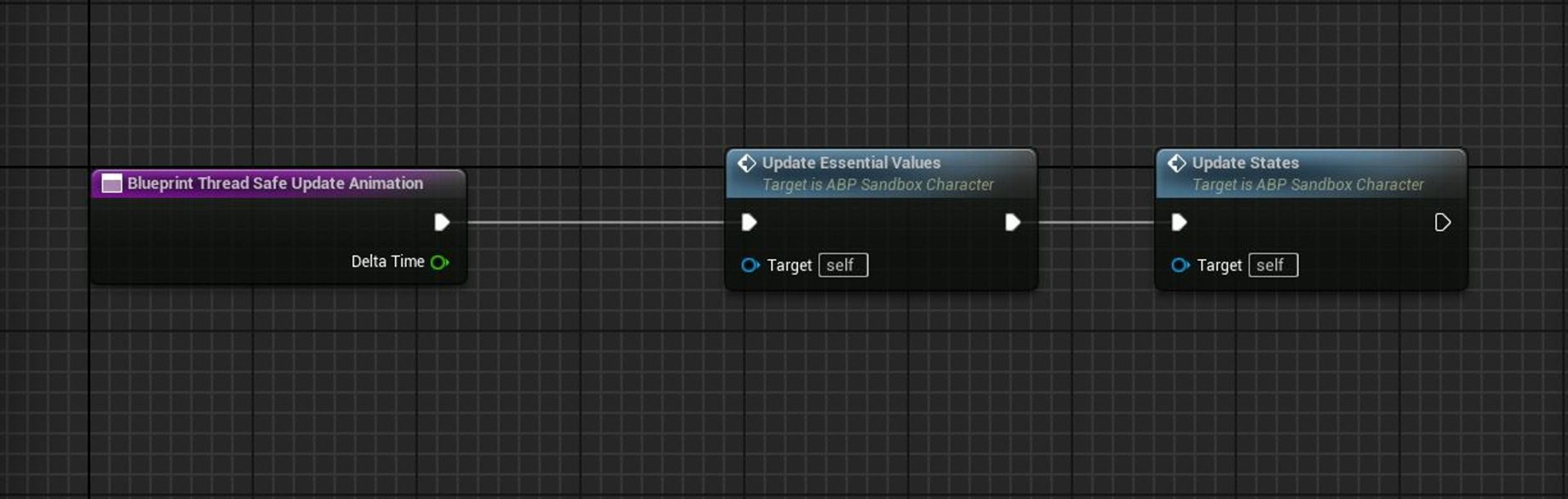
Blueprint Thread Safe Update Animation
Blueprint Thread Safe Update Animation is an Anim Blueprint function that you can use to run logic that previously would have run within the Event Graph. This function is executed as part of the multithreaded animation update, so it avoids the cost of the Event Graph.
Blueprint Thread Safe Update Animation은 이전에는 이벤트 그래프 내에서 실행되었던 로직을 실행하는 데 사용할 수 있는 애니메이션 블루프린트 함수입니다. 이 함수는 멀티스레드 애니메이션 업데이트의 일부로 실행되므로 이벤트 그래프의 비용을 피할 수 있습니다.
Anim Node Functions
Anim Node Functions can run blueprint functionality specific to a node within the anim graph. These functions can be invoked the first time that the node is updated, each time the node becomes relevant within the graph, or on every update. Logic that would otherwise live within the Event Graph can sometimes be moved to these functions.
애니메이션 노드 함수는 애니메이션 그래프 내 노드에 대한 블루프린트 함수를 실행할 수 있습니다. 이러한 함수는 노드가 처음 업데이트될 때, 노드가 그래프내에서 Relevant될 때마다, 또는 업데이트될 때마다 호출될 수 있습니다. 이벤트 그래프에 존재하는 로직을 이러한 함수로 옮길 수도 있습니다.
Nativization
Another way to avoid the cost of blueprint functionality within the Event Graph is to nativize that functionality. Once implemented in C++, you can either call it directly from native equivalents of the bp functions mentioned previously (eg. NativeThreadSafeUpdateAnimation), or from your blueprint events/functions.
이벤트 그래프 내에서 블루프린트 함수의 비용을 피하는 또 다른 방법은 해당 기능을 네이티브화하는 것입니다. C++로 구현하면, 앞서 언급한 bp 함수(예: NativeThreadSafeUpdateAnimation)의 네이티브 버전에서 직접 호출하거나, 블루프린트 이벤트/함수에서 호출할 수 있습니다.
In Fortnite, we prototype using blueprint-based events/functions and then nativize once the functionality is locked in.
포트나이트에서, 블루프린트 기반의 이벤트/함수를 사용하여 프로토타이핑하고, 이후에 기능이 확정되면 네이티브화합니다.
Property Access Call Site
Property Access allows you to access variables and functions directly from pins within your anim graph. Each property access has a call site. This is where, during the update, the call will be made. This can be on a worker thread, or on the game thread. You should aim to have any property access functions that can be thread-safe run from one of the worker thread call sites. But in order for that to be allowed, your function must be marked as Thread Safe.
Property Access를 사용하면 애니메이션 그래프 내의 핀에서 변수와 함수에 직접 접근할 수 있습니다. 각 프로퍼티 접근에는 call site가 있습니다. 업데이트 중에 호출이 이루어지는 곳이 바로 이곳입니다. 이는 Worker Thread 또는 Game Thread에서 실행될 수 있습니다. Thread-Safe Property Access 함수는 Worker Thread call sites 중 하나에서 실행되도록 해야 합니다. 하지만 이를 허용하려면 함수가 Thread-Safe로 표시되어야 합니다.
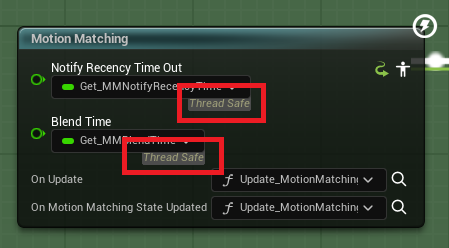
A function call via property access with a callsite that is set to Automatic will run on a worker thread if that function is marked as Thread Safe.
callsite가 Automatic으로 설정된 프로퍼티 액세스를 통한 함수 호출은 해당 함수가 Thread-Safe으로 표시된 경우 Woker Thread에서 실행됩니다.
Linked Animation Graphs & Layers
Linked Anim Graphs & Layers allow you to dynamically swap anim graph functionality, and reduce contention when authoring anim blueprints. However, since linking is done at runtime, each graph incurs a cost so, while an important tool, we recommend against using them excessively.
Linked Anim Graphs & Layers를 사용하면 애니메이션 그래프 기능을 동적으로 교체하고 애니메이션 블루프린트 작성 시 발생하는 충돌을 줄일 수 있습니다. 하지만 링킹은 런타임에 이루어지기 때문에 각 그래프마다 비용이 발생하므로 중요한 도구이기는 하지만 과도하게 사용하지 않는 것이 좋습니다.
Linked Layer Groups
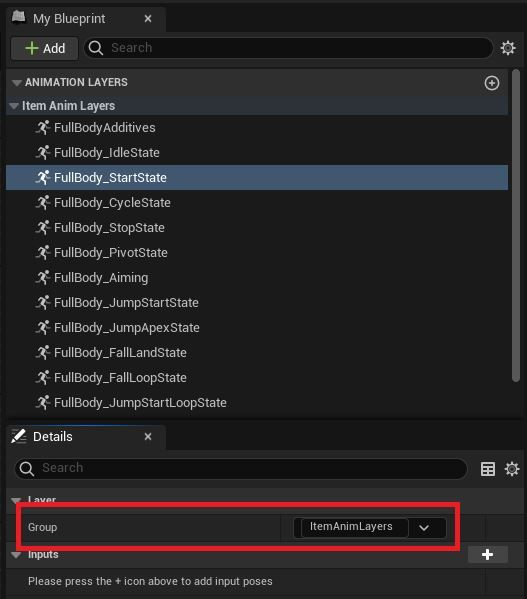
When setting up linked layers via an Anim Layer Interface you’re given the option to set a group for each layer. At runtime, one anim instance will be created per group, significantly increasing overhead. Often this is not the desired behaviour and each layer can use the same group.
Anim Layer Interface를 통해 연결된 레이어를 설정할 때 각 레이어에 그룹을 설정할 수 있습니다. 런타임 시 그룹당 하나의 애니메이션 인스턴스가 생성되어 오버헤드가 크게 증가합니다. 이는 바람직하지 않은 동작이며, 각 레이어가 동일한 그룹을 사용할 수 있습니다.
In 5.4 onwards, the ‘default’ group creates a shared anim instance but in previous versions, you need to create a shared group.
5.4 이상에서는 'default' 그룹이 shared anim instance를 생성하지만, 이전 버전에서는 shared group을 직접 생성해야 했습니다.
Fast Path
Fast Path optimizes anim graphs by bypassing blueprint thunks for variable lookups and simple operations (boolean not, etc). Instead, it allows these operations to be performed directly in native code. In Unreal releases prior to the multithreaded animation update, this was an important performance optimization however, it’s now unlikely to affect your overall frame time. Having said that, there’s no reason not to use it where possible.
Fast Path는 변수 조회 및 간단한 연산(부울 NOT 등)에 blueprint thunks를 사용하지 않음으로써 애님 그래프를 최적화합니다. 대신, 이러한 연산을 네이티브 코드에서 직접 수행할 수 있도록 합니다. 멀티스레드된 애니메이션 업데이트 이전의 언리얼 버전에서는 이 부분이 중요한 성능 최적화였지만, 이제는 전체 프레임 시간에 영향을 미칠 가능성이 낮습니다. 그렇다고 해서 가능한 경우 Fast Path를 사용하지 않을 이유는 없습니다.
You can opt-into anim blueprint compiler warnings to enforce usage in your project.
애니메이션 블루프린트 컴파일러 경고를 활성화하여 프로젝트에서 강제로 사용하도록 할 수 있습니다.
'UE5' 카테고리의 다른 글
| [UE5] Animation System 분석 (1) | 2025.08.10 |
|---|---|
| [UE5] 공식 문서 주요사항 메모 (0) | 2024.11.19 |
| [UE5] TWeakObjectPtr (4) | 2024.11.06 |
| [UE5] CreateDefaultSubobject, NewObject, SpawnActor (0) | 2024.11.03 |
| [UE5] LineTrace Cost (3) | 2024.10.18 |